
Configuring Okta SSO
Connect your Okta identity provider to Frill using SAML 2.0 authentication. This allows team members to sign in to Frill through Okta.
You'll need admin access to both Okta and Frill (company admin role) to complete this setup.
Step 1: Get Frill's SAML details
In Frill, go to Settings → Single Sign-On
Click Connect on the Okta provider.
Copy these two values (you'll need them for Okta):
Single Sign-On Response URL (ACS URL)
Audience URI (SP Entity ID)

Step 2: Create a New Okta App
Log in to your Okta Admin Dashboard
Go to Applications
Click Create App Applications
Choose SAML 2.0 and click Next
Step 3: General Settings in Okta
Enter an app name (e.g., "Frill")
Optionally add a logo
Click Next
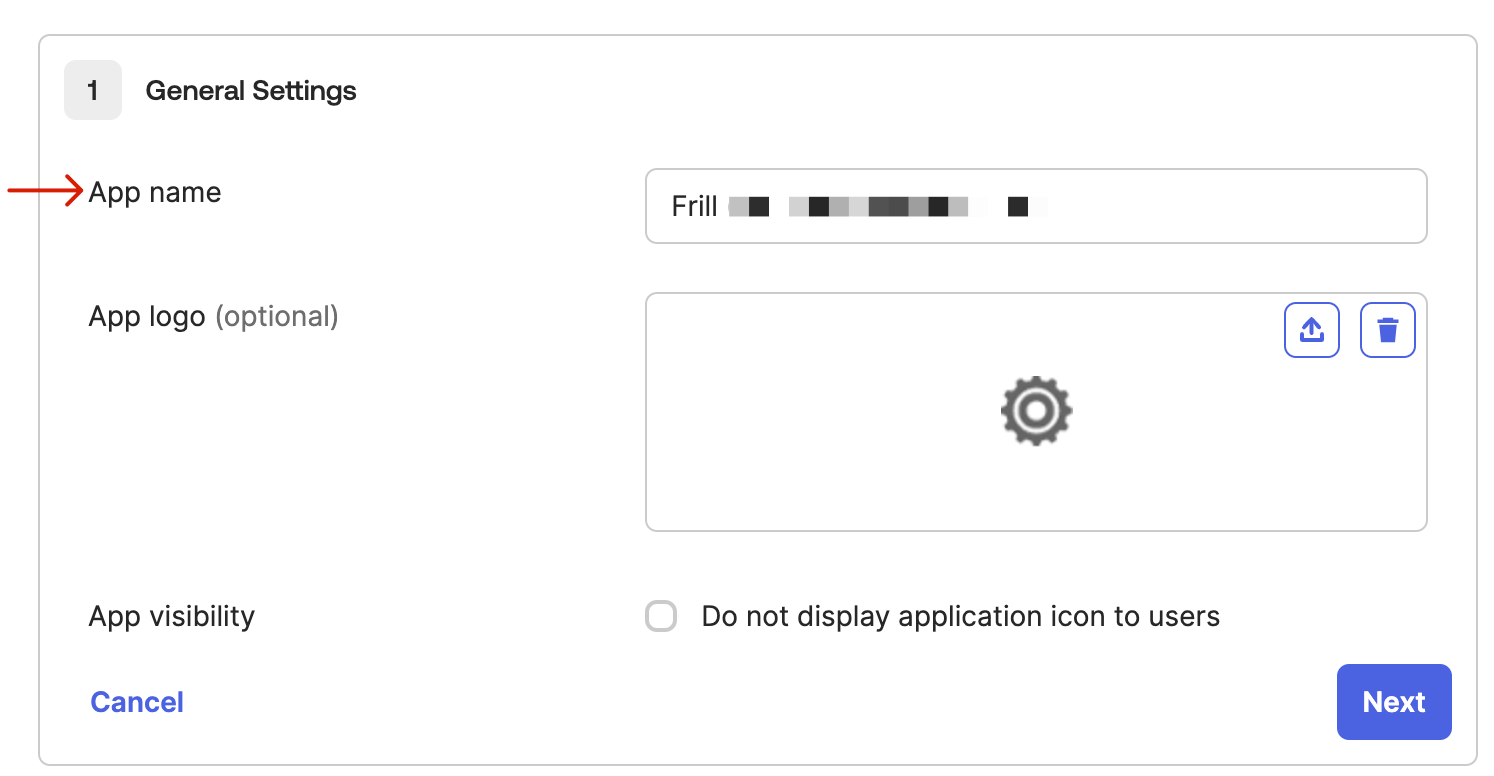
Step 4: Configure SAML settings
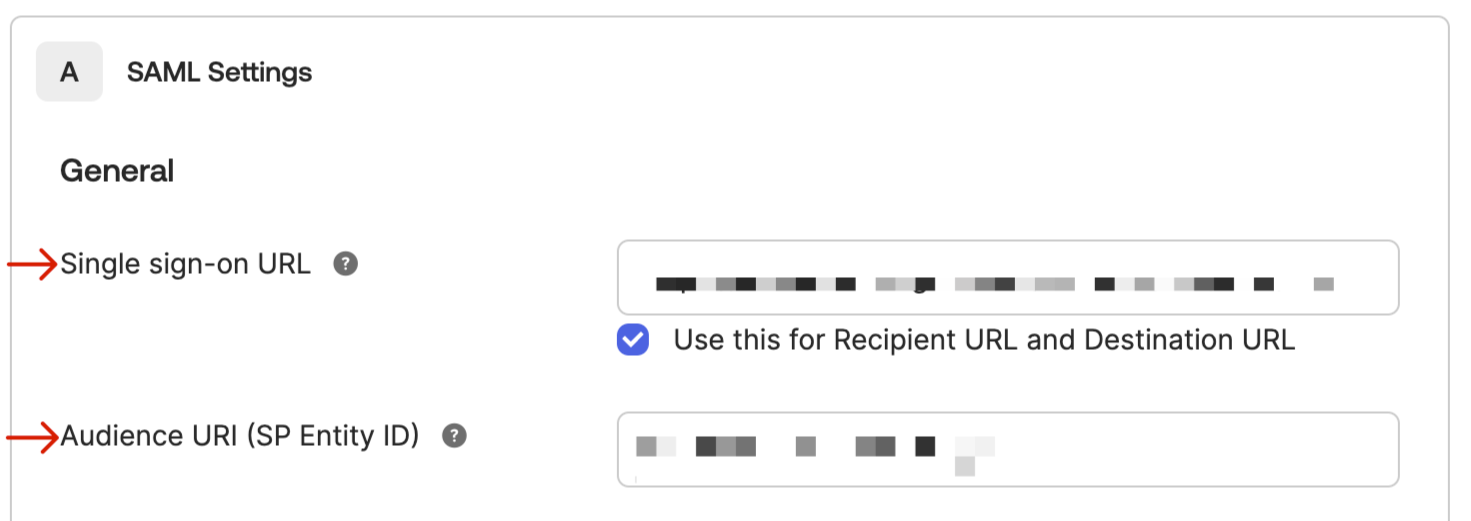
In the SAML Settings section:
Paste the Single Sign-On Response URL from Frill into Single sign-on URL
Paste the Audience URI from Frill into Audience URI (SP Entity ID)
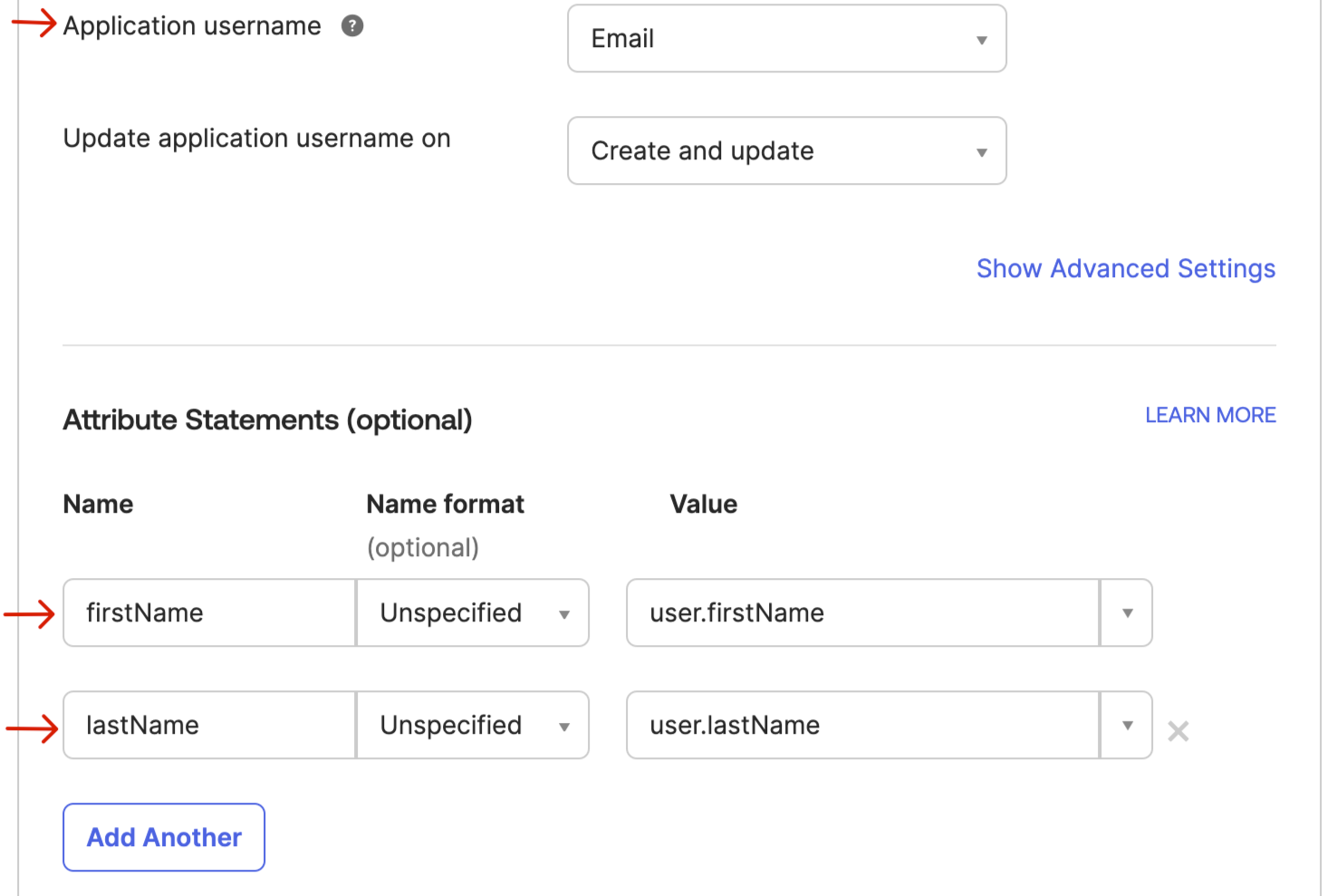
Set Application username to Email
Add attribute statements:
email →
user.emailname →
user.displayName
Click Next, then Finish
Step 5: Copy Okta details to Frill
On the Settings page in Okta, click the View SAML setup instructions button
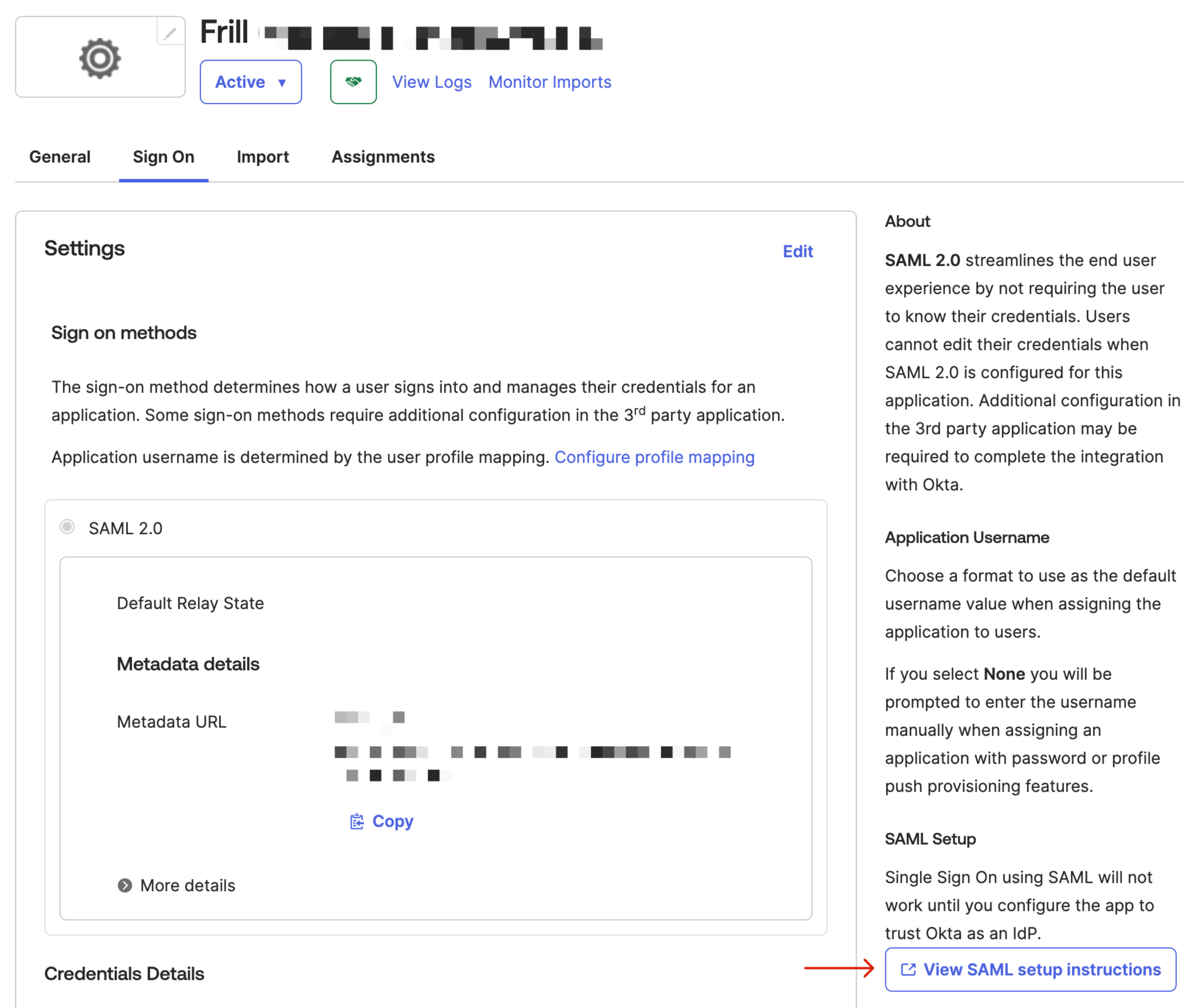
This will display a page with the details you need to copy to Frill to finish the Okta setup
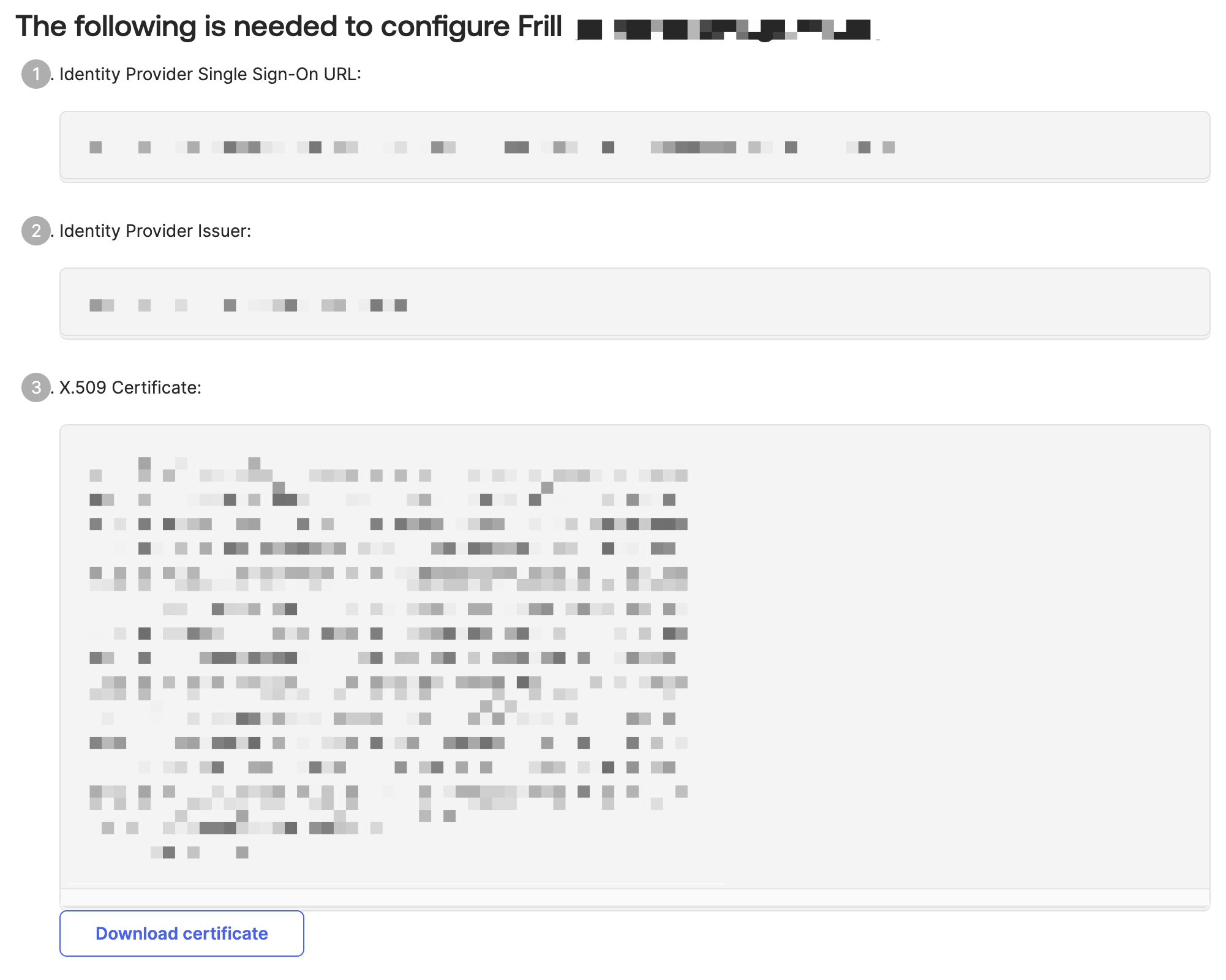
Step 6: Finish Setup in Frill
Back in Frill:
Copy and paste the Identity Provider Single Sign-On URL from Okta
Paste the Identity Provider Issuer URL from Okta.
Download and upload the X.509 Certificate from Okta.
Step 7: Assign users in Okta
In your Okta app, go to the Assignments tab
Click Assign and choose Assign to People or Assign to Groups
Select the users or groups who should access Frill
Click Assign, then Done
Test SSO in a private browser window before disabling password logins. Sign in using Okta and confirm you can access Frill.
Additional settings
Expand Additional settings on the Okta setup page to configure options shared across SSO providers.
Logout redirect URL — Users are redirected here after logging out of Frill.
Email/password login options — Choose whether people can still sign in with email and password as well as SSO: No, SSO only, Yes, have both, or SSO for team only. Frill shows a team login link when SSO for team only is selected.
SSO secret key — Sign Frill JWTs with this key to identify users in the Frill Script.
Sync user profiles — When on, Frill updates each existing user's name and avatar from the SSO token on sign-in and overwrites profile changes made in Frill. When off, Frill leaves existing names unchanged and only fills in a missing avatar when SSO provides one. Map the name attribute in Okta if you want Frill to receive a display name from SSO.
Troubleshooting
If SSO isn't working:
Verify the ACS URL and Audience URI match exactly between Okta and Frill
Confirm the x509 certificate includes
-----BEGIN CERTIFICATE-----and-----END CERTIFICATE-----markersCheck that users are assigned to the Frill app in Okta
Ensure Name ID format is set to EmailAddress
For additional help, see Frill's SSO developer documentation.